









SUBSCRIPTION BASED MARKETING
Absolute Studios is an award-winning creative production team dedicated to helping results-driven professionals build brands with personality. We have the tools in-house to help tell your story across all platforms through consistent, cohesive campaigns.



It’s not just what you say, it’s how you say it, where you say it, and to whom you say it to. With an unmatched commitment to building collaborative relationships with our client partners, we create content that clicks with your audiences and keeps them coming back for more.

We can pretty much email them anything and they’re ready to make that campaign a success. If you are looking for a dependable marketing team with creative solutions, we highly recommend Absolute Studios.

ALL ACCESS
Not all companies have the same needs, and not all marketing teams have the same talent, which is why we created the Absolute All Access subscription.
All Access offers agency-level graphic design, website management, and creative production with multiple levels of engagement options. These packages are designed to create a positive marketing campaign experience with a consistent monthly budget.
It’s our goal that you’d feel like we’re an extension of your internal team. With our fast turnaround time and unlimited revisions, this option of services is ideal for small to medium-sized marketing departments.
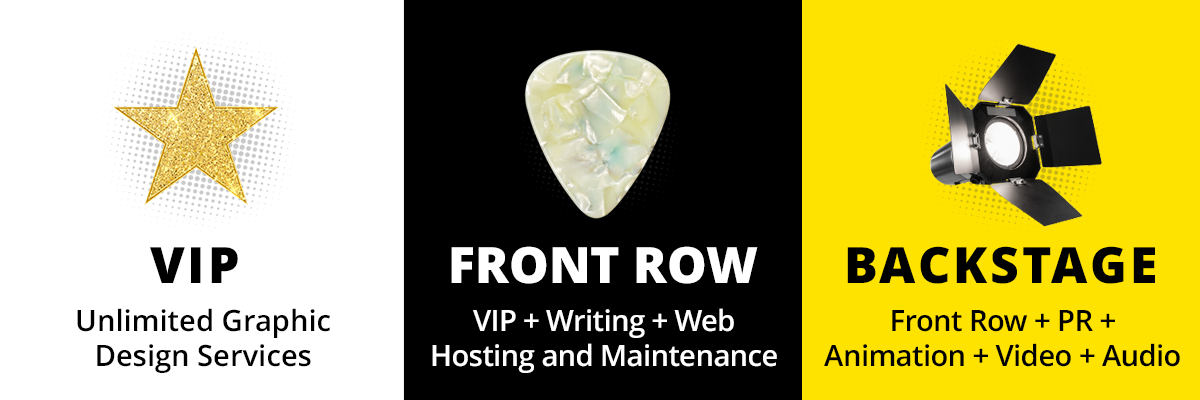
Based on your needs, we’ve broken down our All Access Subscription into three different levels:
A LA CARTE Marketing Services
Although our primary approach involves a subscription model, it doesn’t limit us from handling individual projects.
At our essence, we are a creative arts studio. Whether you need a brief tutorial animation or a logo for your new venture, our team comprised of designers, writers and strategists are equipped to handle a variety of marketing projects.
Our process begins with a straightforward meeting to delve into your project, goals, and budget. Subsequently, we craft a detailed statement of work, obtain your approval and then perform the work with an upfront and on budget guarantee.
Contact Us Now
"*" indicates required fields
SUBSCRIPTION BASED MARKETING
Absolute Studios is an award-winning creative production team dedicated to helping results-driven professionals build brands with personality. We have the tools in-house to help tell your story across all platforms through consistent, cohesive campaigns.
It’s not just what you say, it’s how you say it, where you say it, and to whom you say it. With an unmatched commitment to building collaborative relationships with our client partners, we create content that clicks with your audiences and keeps them coming back for more.
We can pretty much email them anything and they’re ready to make that campaign a success. If you are looking for a dependable marketing team with creative solutions, we highly recommend Absolute Studios.





We would say if you’re on the fence, just step back, take a look and say, okay, are we ready to take the next step with our marketing eff orts? If you are, you’re going to want to partner with Absolute Studios.

ALL ACCESS
Not all companies have the same needs, and not all marketing teams have the same talent, which is why we created the Absolute All Access subscription.
All Access offers agency-level graphic design, website management, and creative production with multiple levels of engagement options. These packages are designed to create a positive marketing campaign experience with a consistent monthly budget.
It’s our goal that you’d feel like we’re an extension of your internal team. With our fast turnaround time and unlimited revisions, this option of services is ideal for small to medium-sized marketing departments.
Based on your needs, we’ve broken down our All Access Subscription into three different levels:
A LA CARTE Marketing Services
Although our primary approach involves a subscription model, it doesn’t limit us from handling individual projects. At our essence, we are a creative arts studio. Whether you need a brief tutorial animation or a logo for your new venture, our team comprised of designers, writers and strategists are equipped to handle a variety of marketing projects.
Our process begins with a straightforward meeting to delve into your project, goals, and budget. Subsequently, we craft a detailed statement of work, obtain your approval and then perform the work with an upfront and on budget guarantee.
Contact Us Now
"*" indicates required fields


SUBSCRIPTION BASED MARKETING
Absolute Studios is an award-winning creative production team dedicated to helping results-driven professionals build brands with personality. We have the tools in-house to help tell your story across all platforms through consistent, cohesive campaigns.
It’s not just what you say, it’s how you say it, where you say it, and to whom you say it to. With an unmatched commitment to building collaborative relationships with our client partners, we create content that clicks with your audiences and keeps them coming back for more.
ALL ACCESS
Not all companies have the same needs, and not all marketing teams have the same talent, which is why we created the Absolute All Access subscription.
All Access offers agency-level graphic design, website management, and creative production with multiple levels of engagement options. These packages are designed to create a positive marketing campaign experience with a consistent monthly budget.
It’s our goal that you’d feel like we’re an extension of your internal team. With our fast turnaround time and unlimited revisions, this option of services is ideal for small to medium-sized marketing departments.
Based on your needs, we’ve broken down our All Access Subscription into three different levels:
A LA CARTE Marketing Services
Although our primary approach involves a subscription model, it doesn’t limit us from handling individual projects.
At our essence, we are a creative arts studio. Whether you need a brief tutorial animation or a logo for your new venture, our team comprised of designers, writers and strategists are equipped to handle a variety of marketing projects.
Our process begins with a straightforward meeting to delve into your project, goals, and budget. Subsequently, we craft a detailed statement of work, obtain your approval and then perform the work with an upfront and on budget guarantee.
Contact Us Now
"*" indicates required fields